
ASCII art examples, with the settings behind them
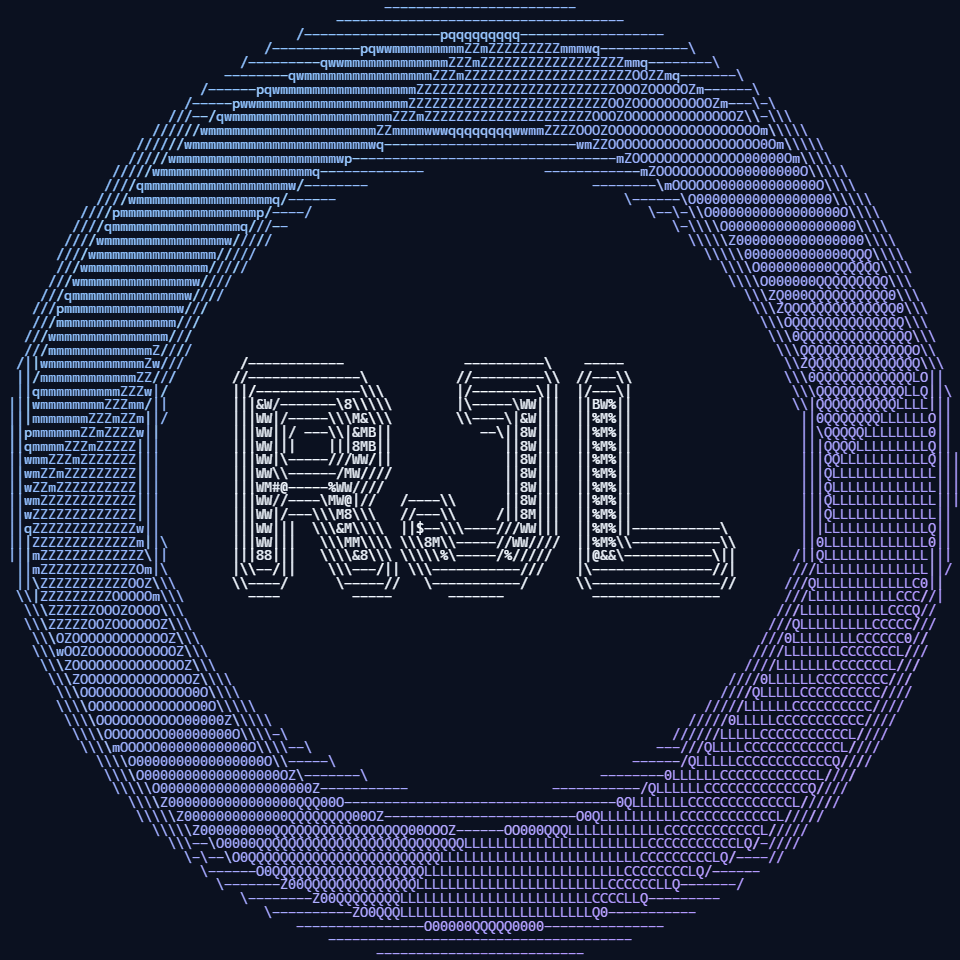
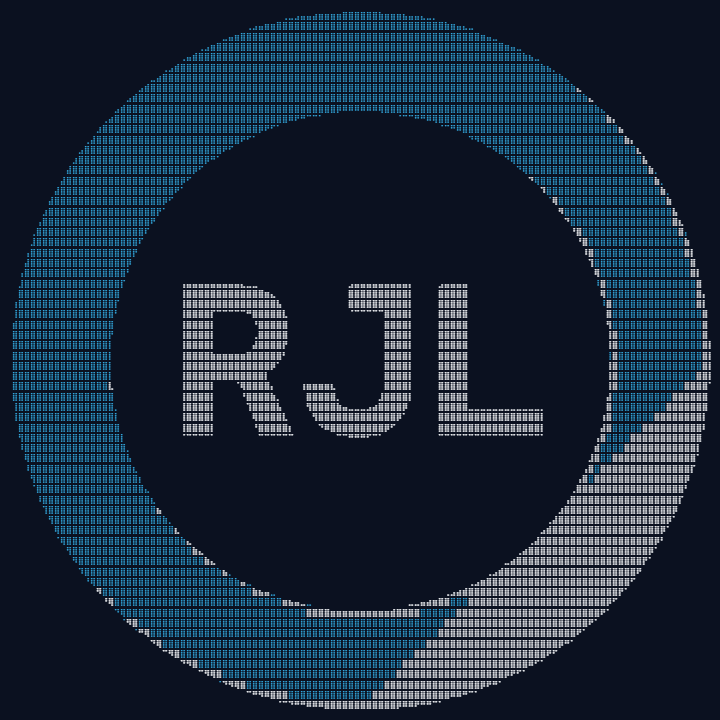
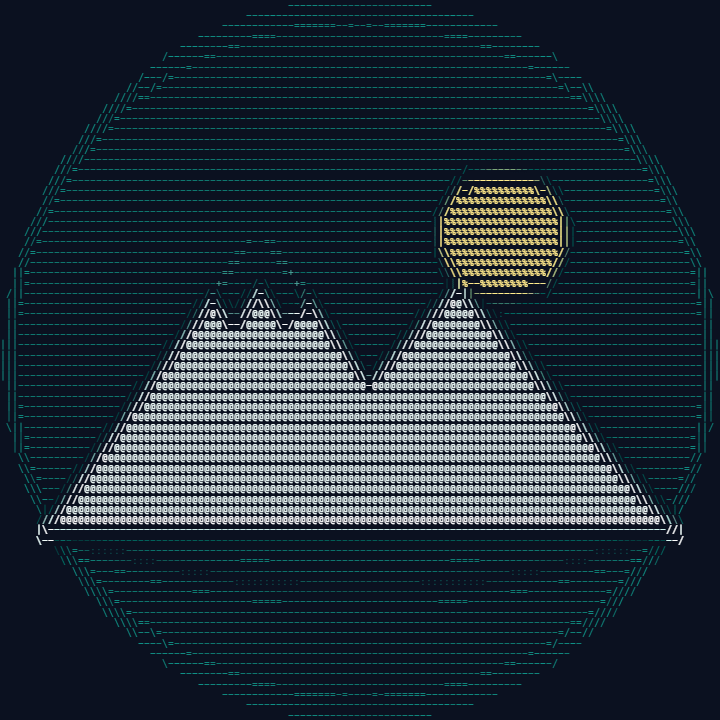
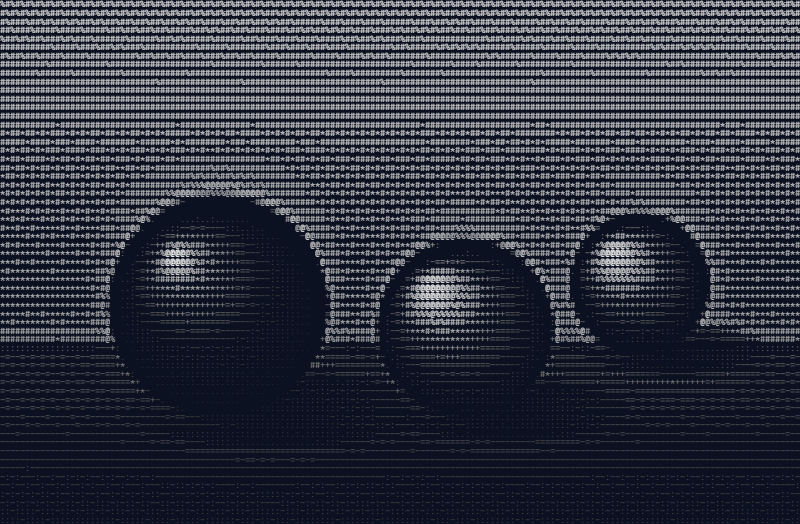
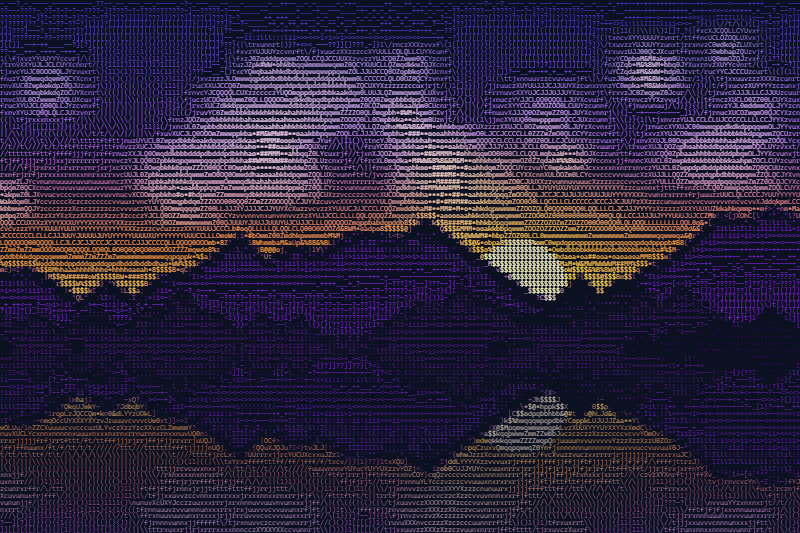
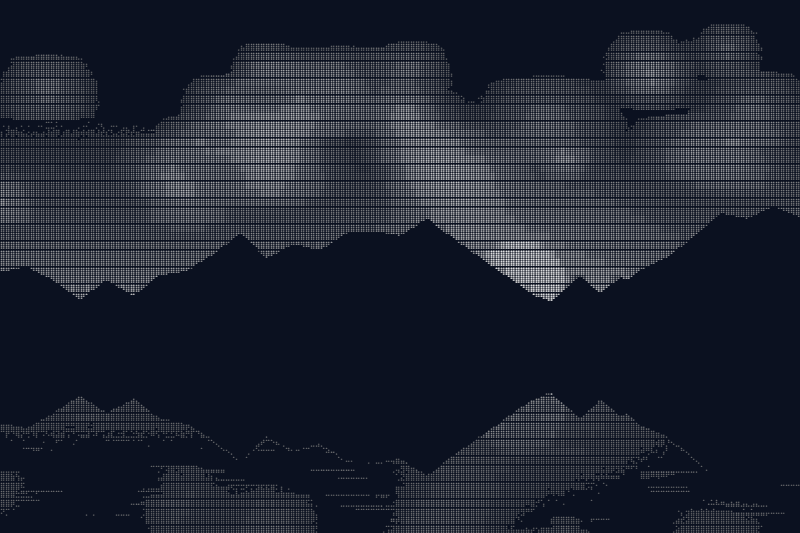
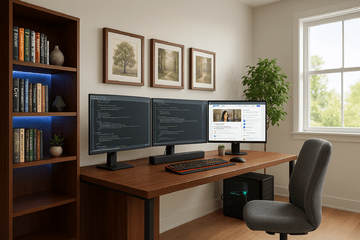
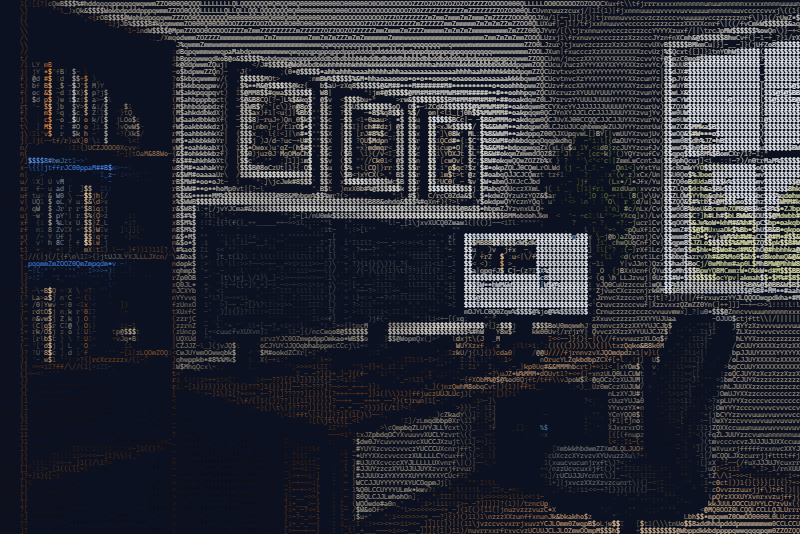
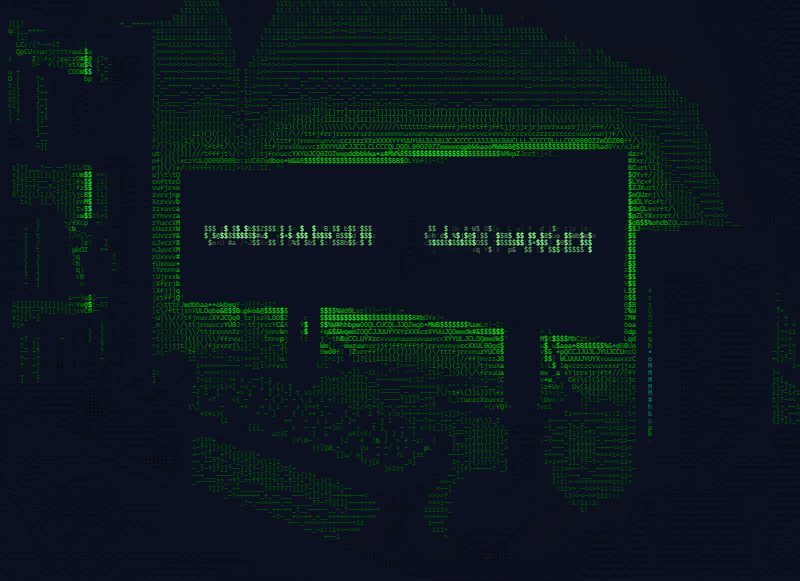
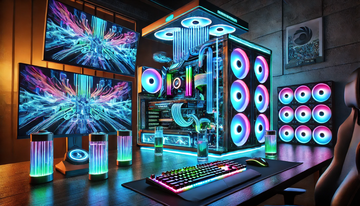
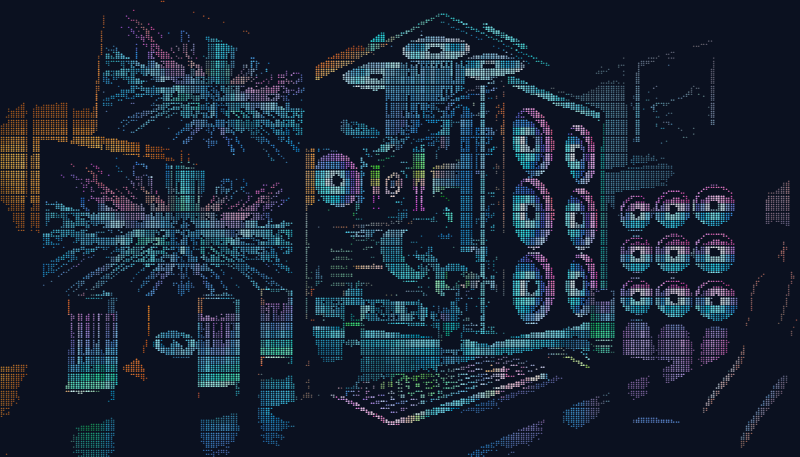
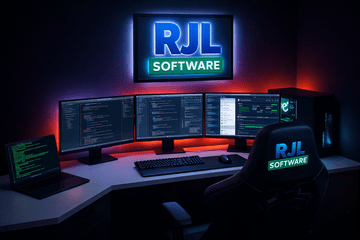
Every image below is the converter's own output, shown next to the original. Each one opens the converter with the same image and the exact settings that made it: change a setting and watch it redraw, then drop in your own image.
The sources are original marks drawn for these examples, real photographs, the ASCIILogo.com wordmark, the site's own illustrations, RJL Software office scenes, RJL.dev and RJL.ai artwork, and 3D icons
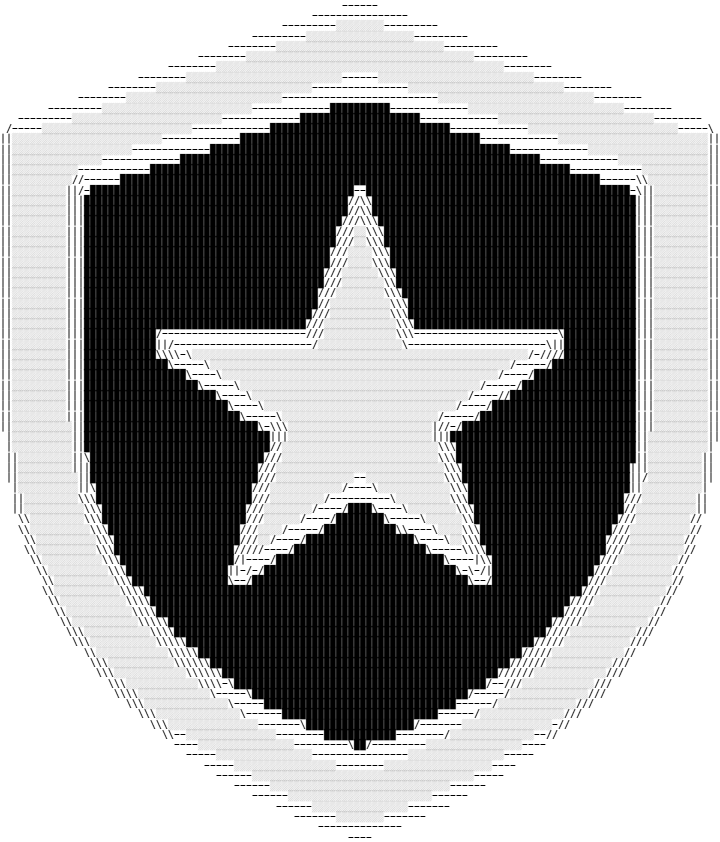
Logos

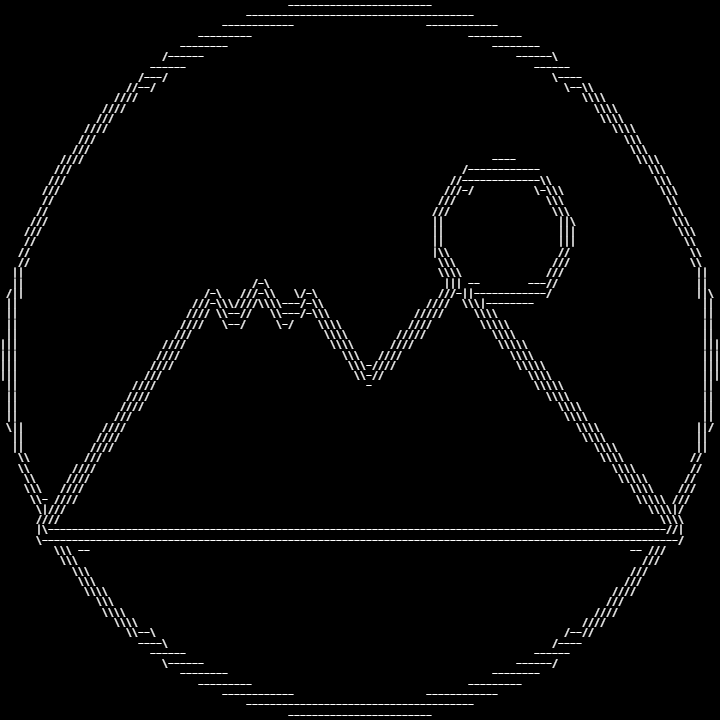



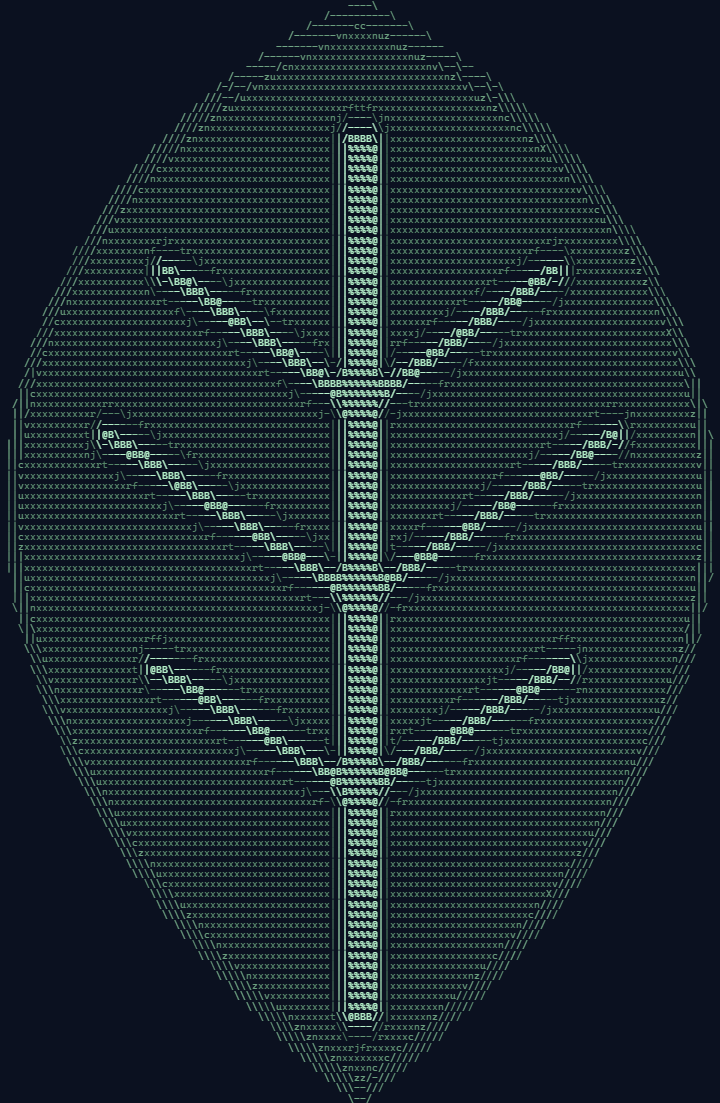

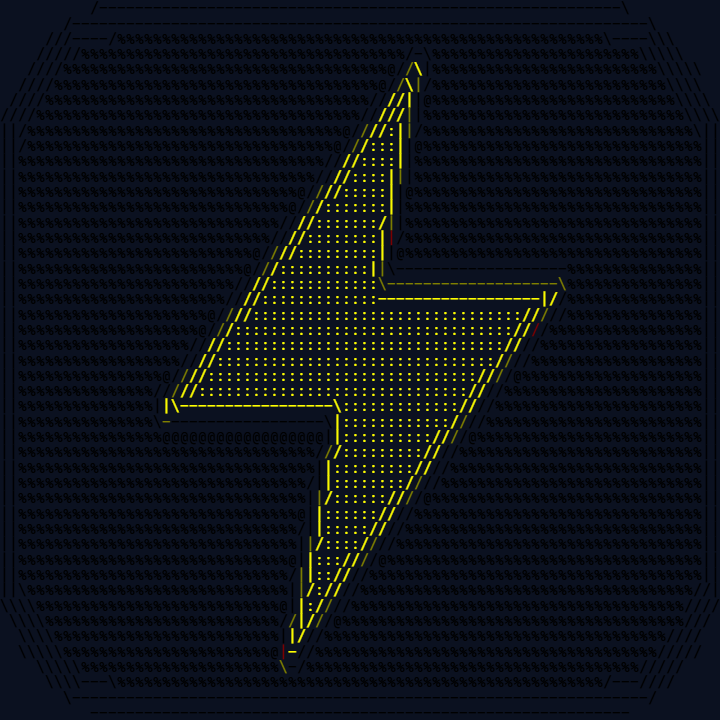

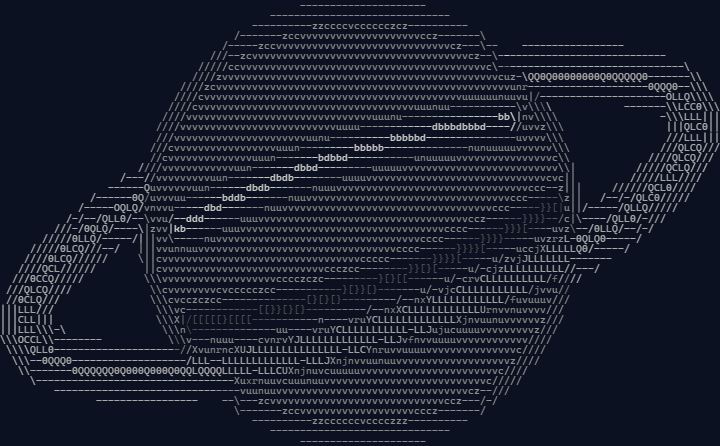

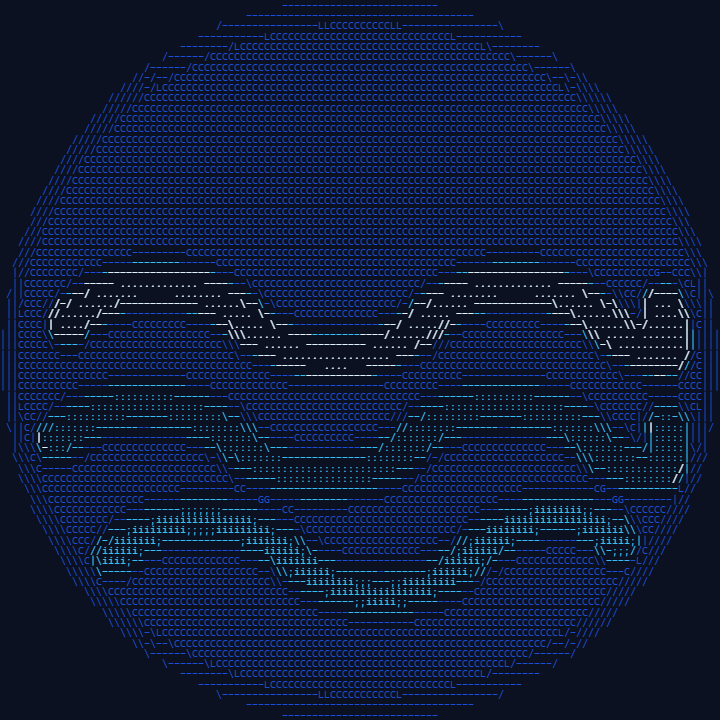



Real photographs
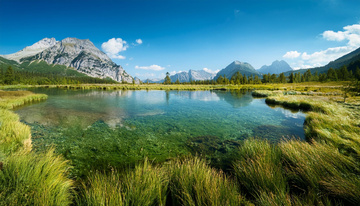
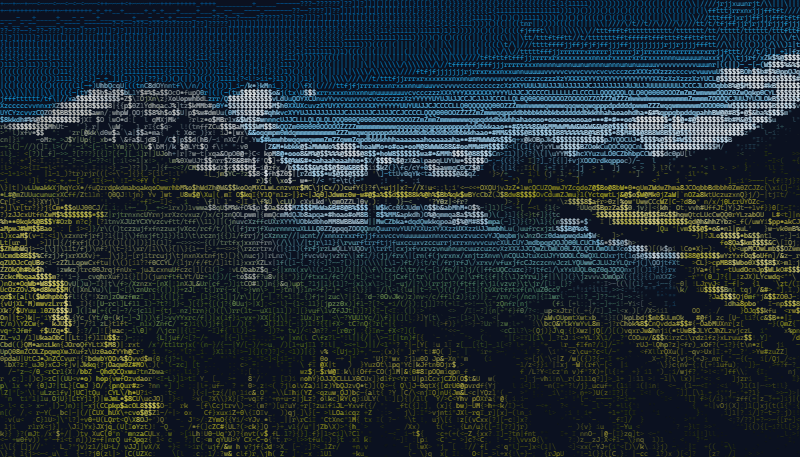
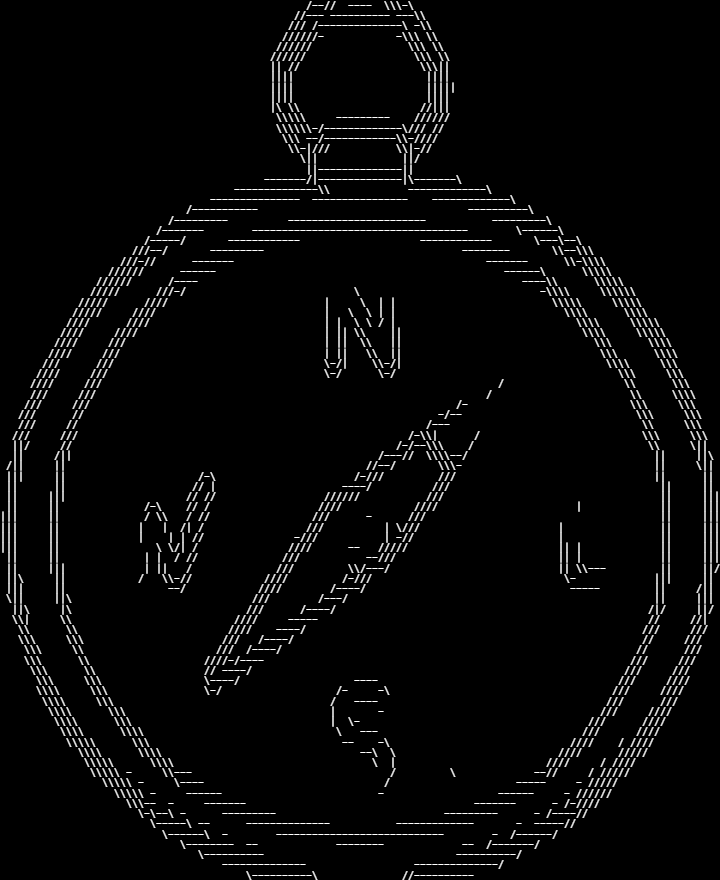
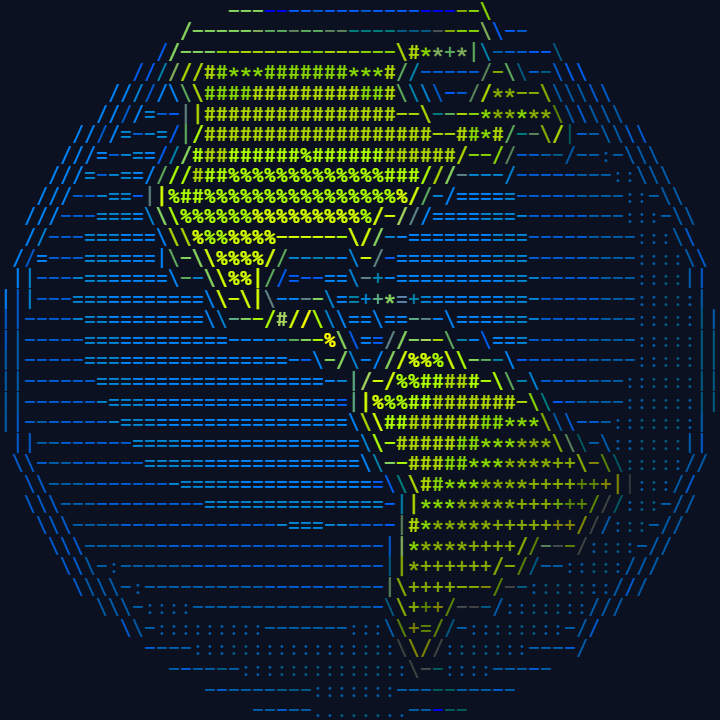
Camera photos, with the noise, soft focus and fine texture a drawing never has. The Photo preset handles all four; the last two trade color for a terminal palette and grayscale.
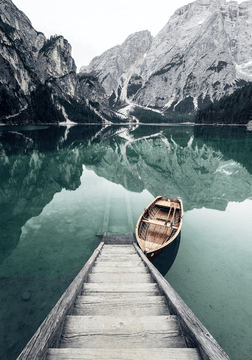
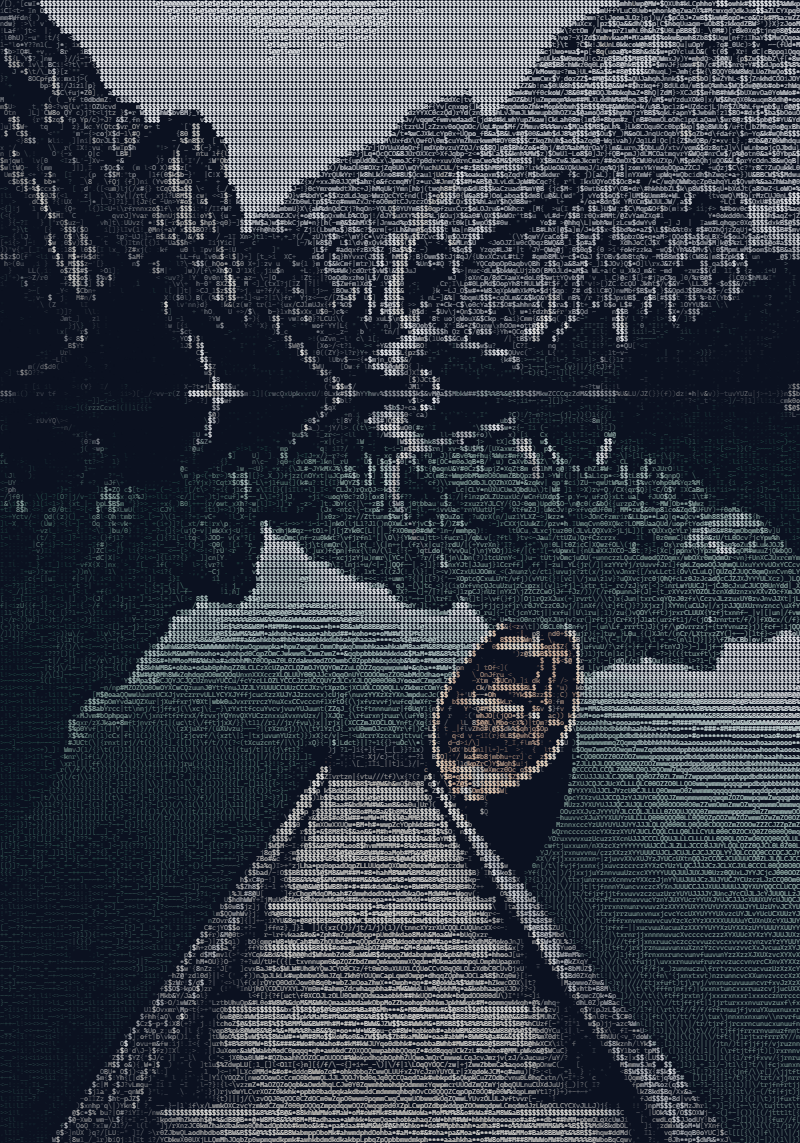
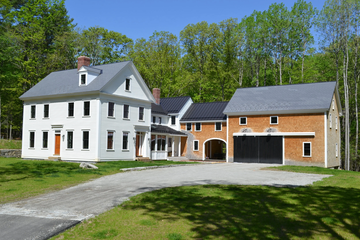
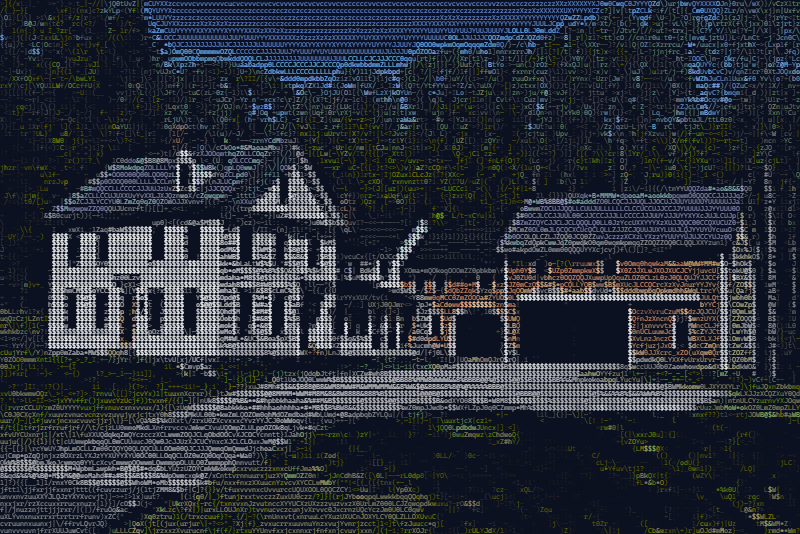
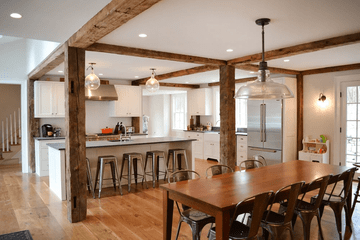
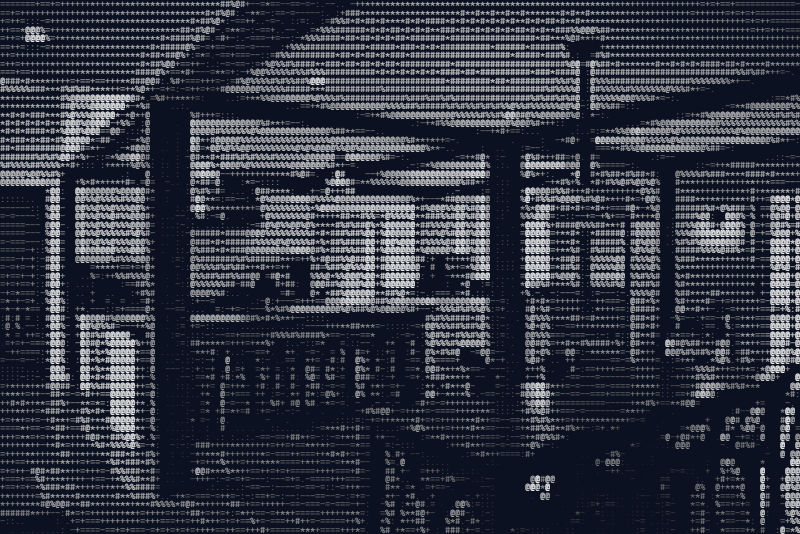
Painted scenes and illustrations
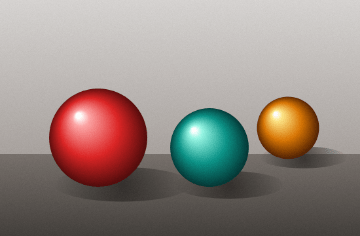
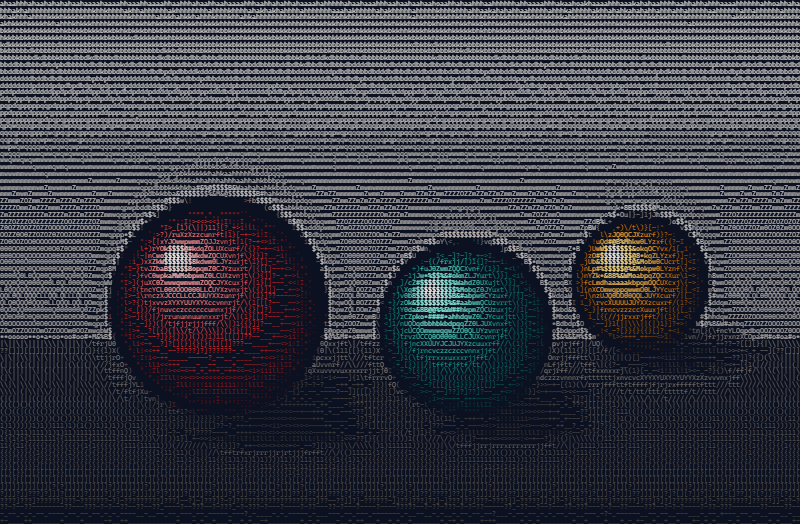

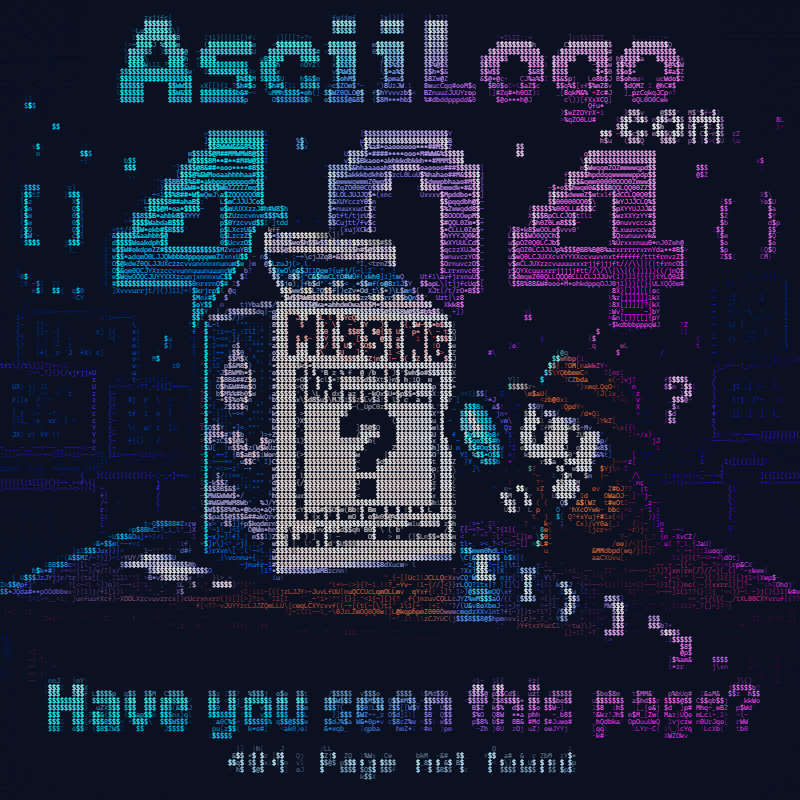
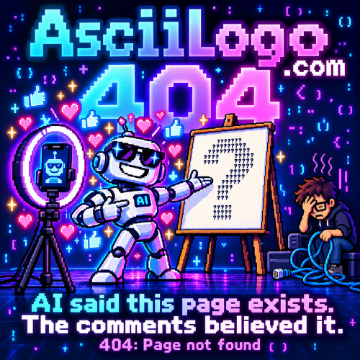
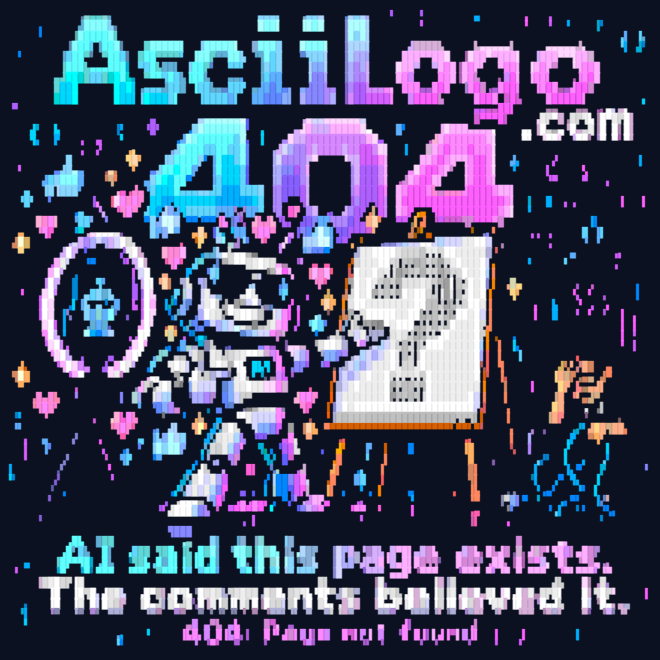
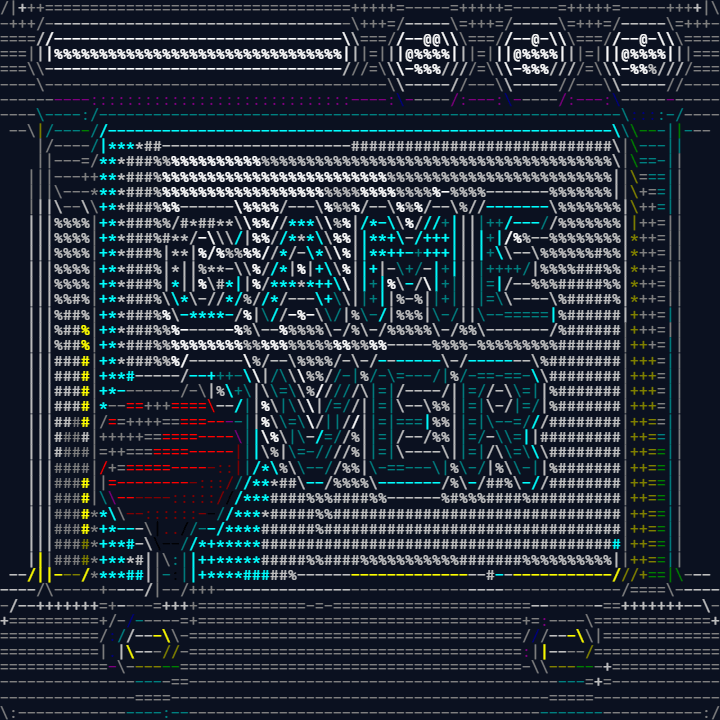
The office
Busy, detailed scenes - the Photo preset's home ground. Compare the same kind of picture in full color, 256 colors, Braille, grayscale and a duotone.
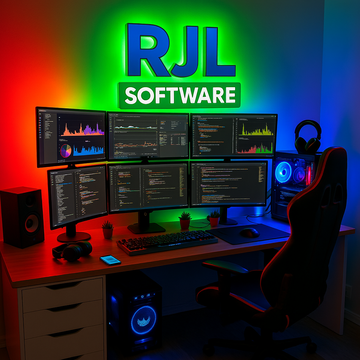
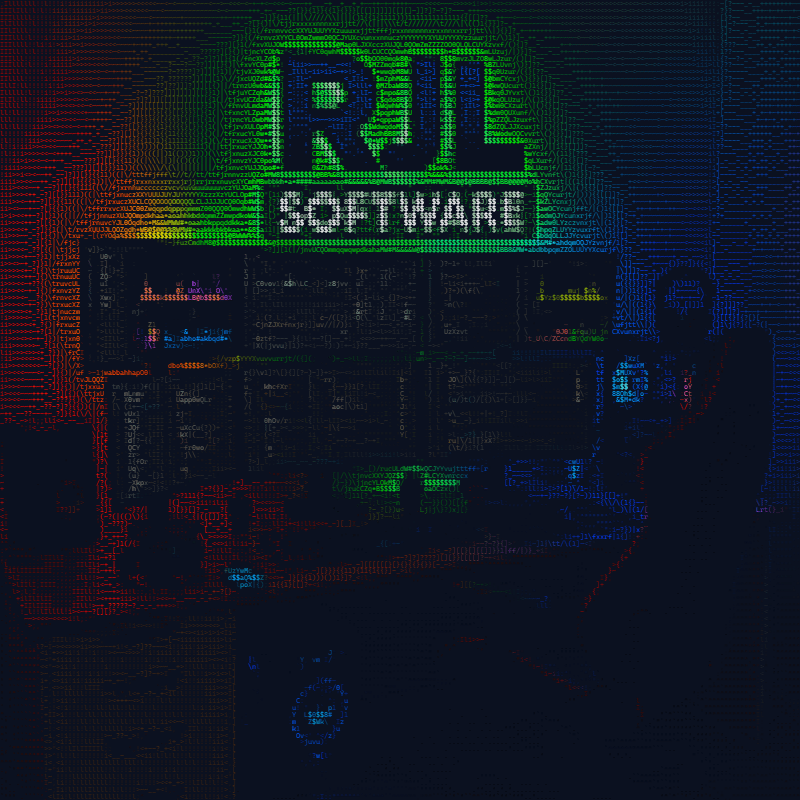
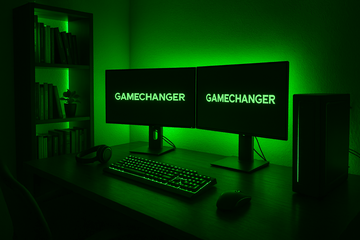
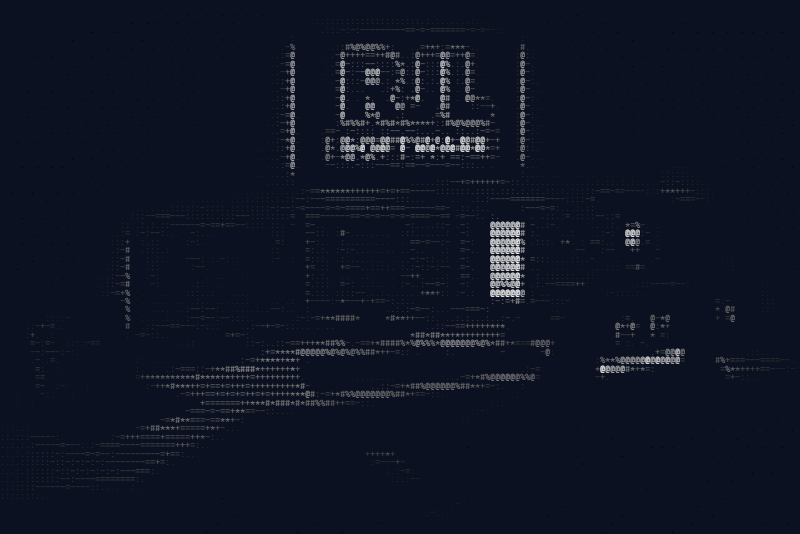
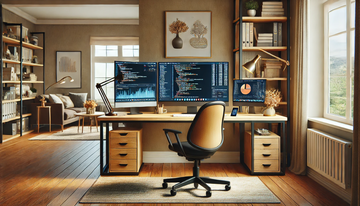
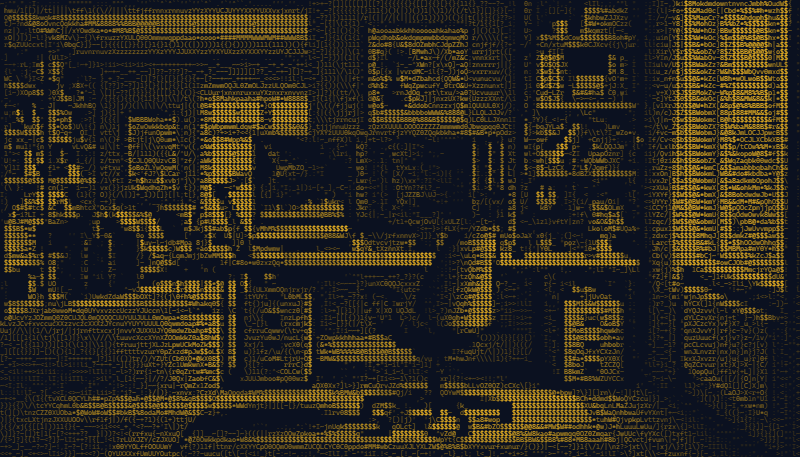
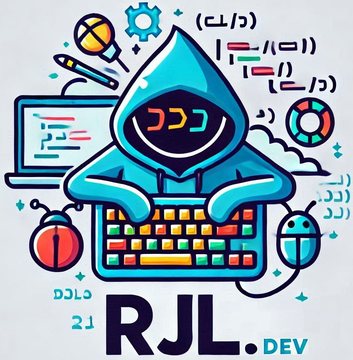
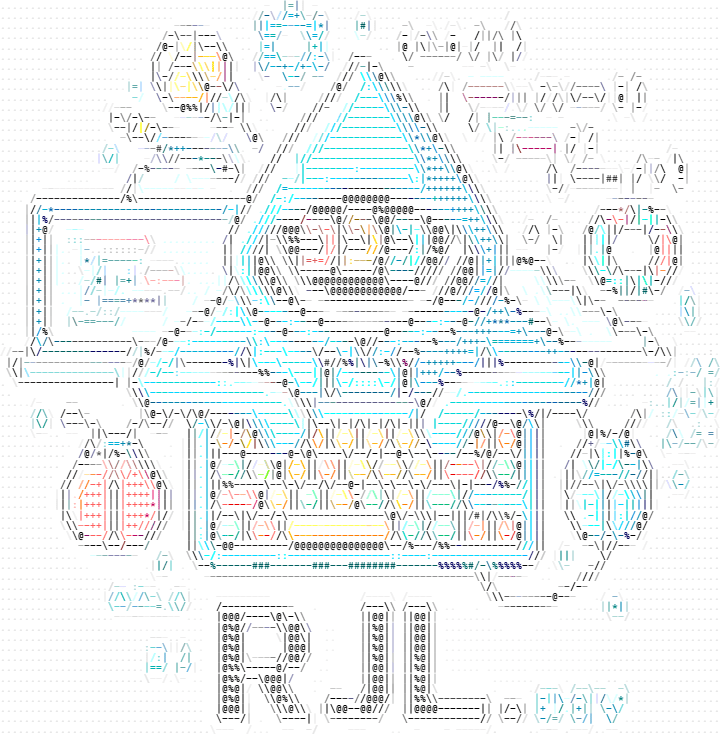
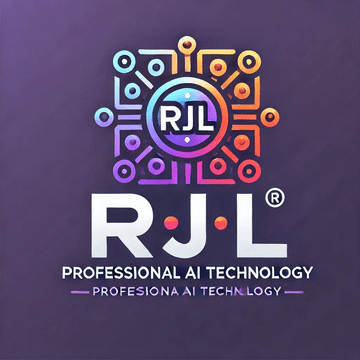
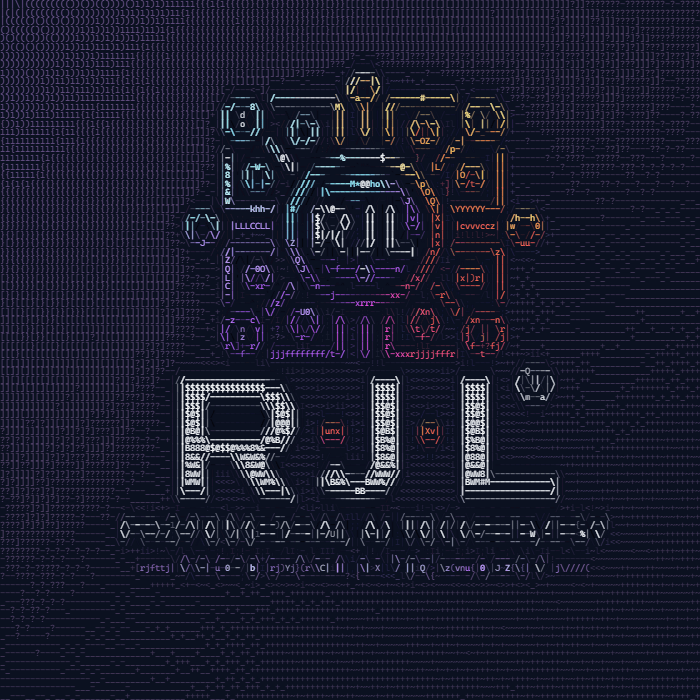
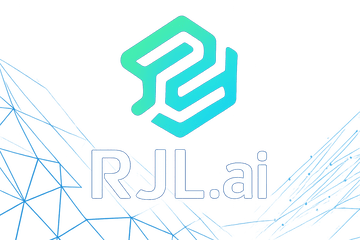
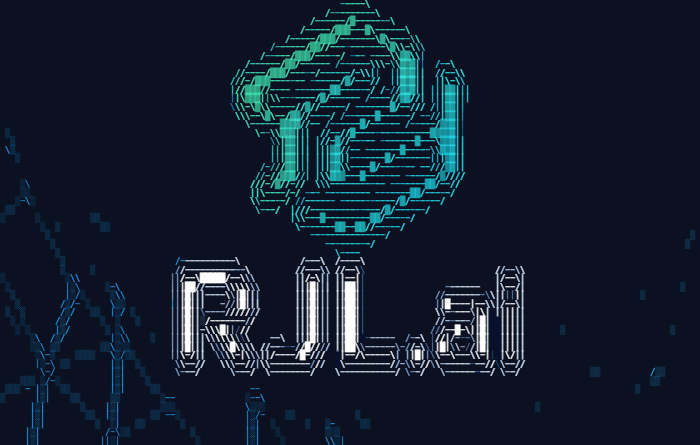
RJL.dev and RJL.ai
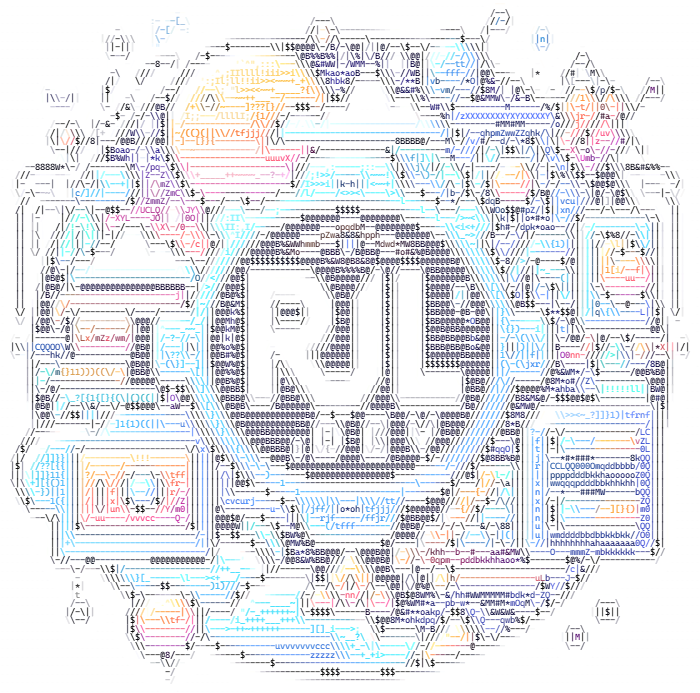
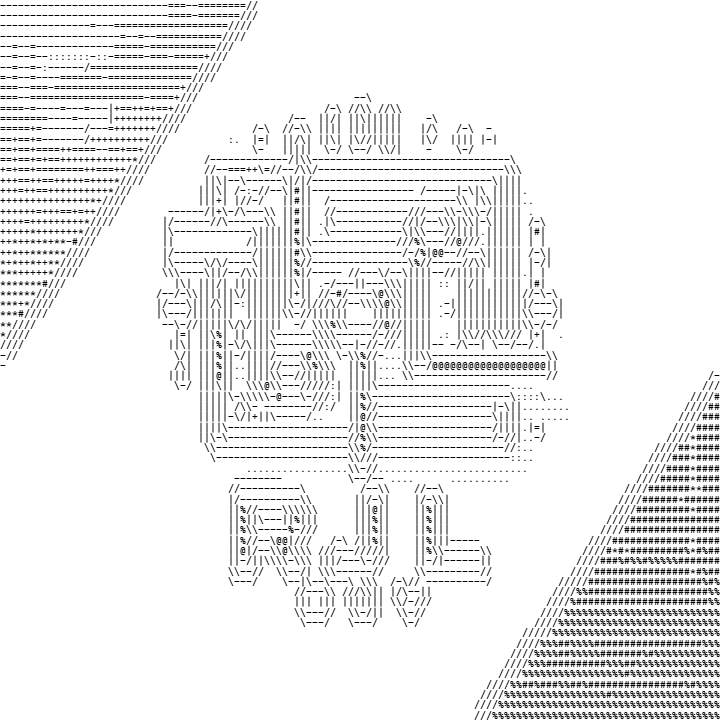
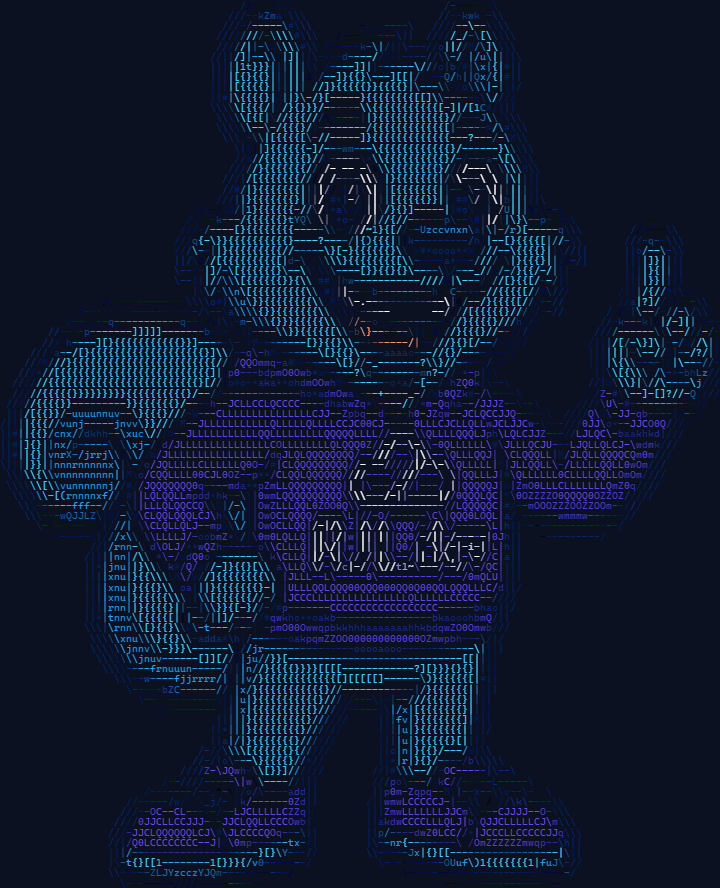
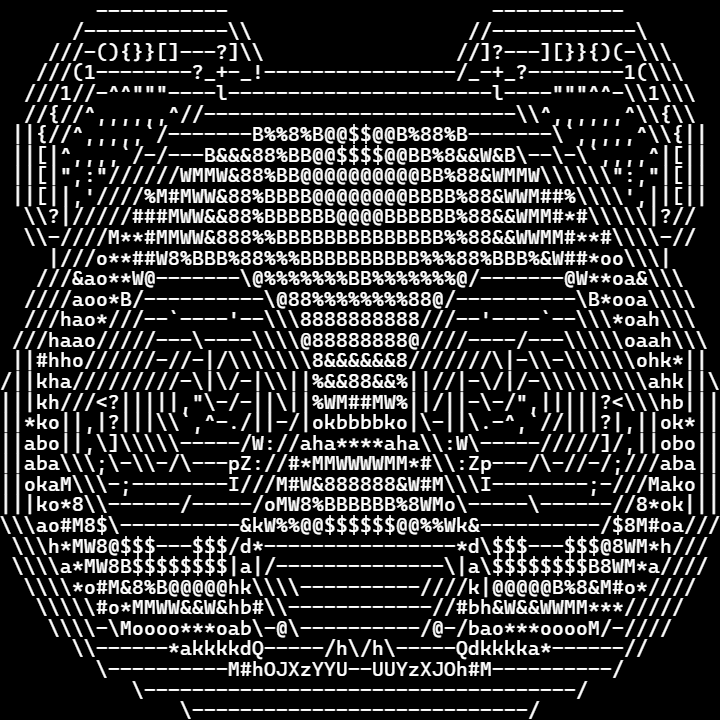
Logos, badges and mascots. A white background, Black on white, and a palette all change how the same flat artwork reads.
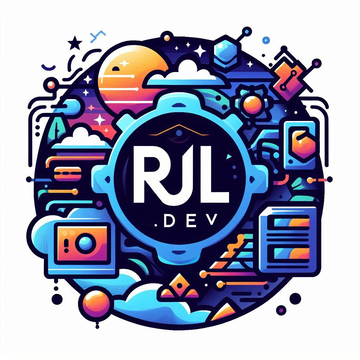





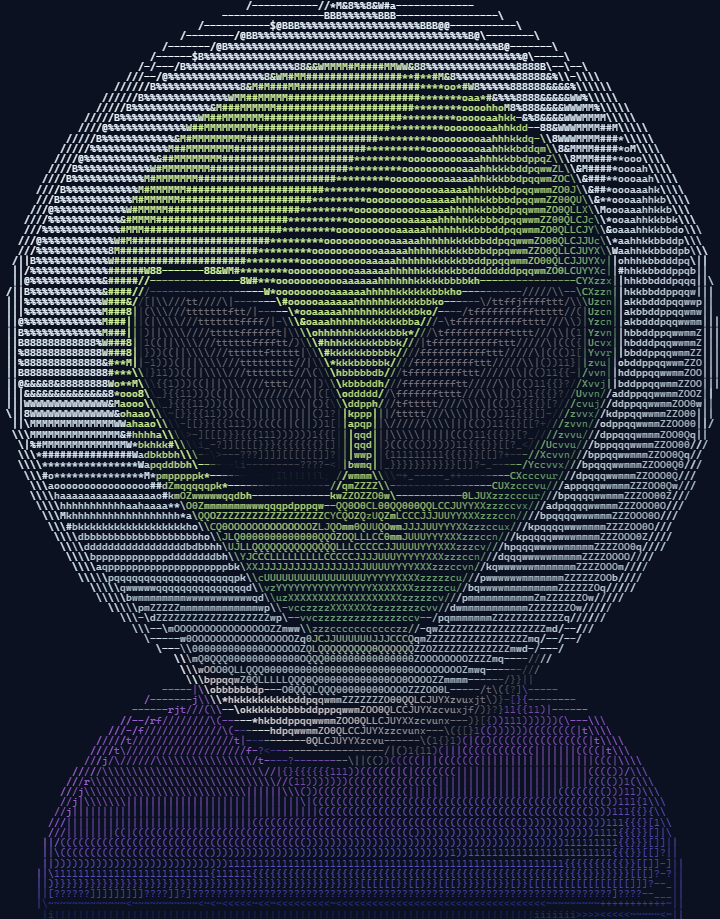
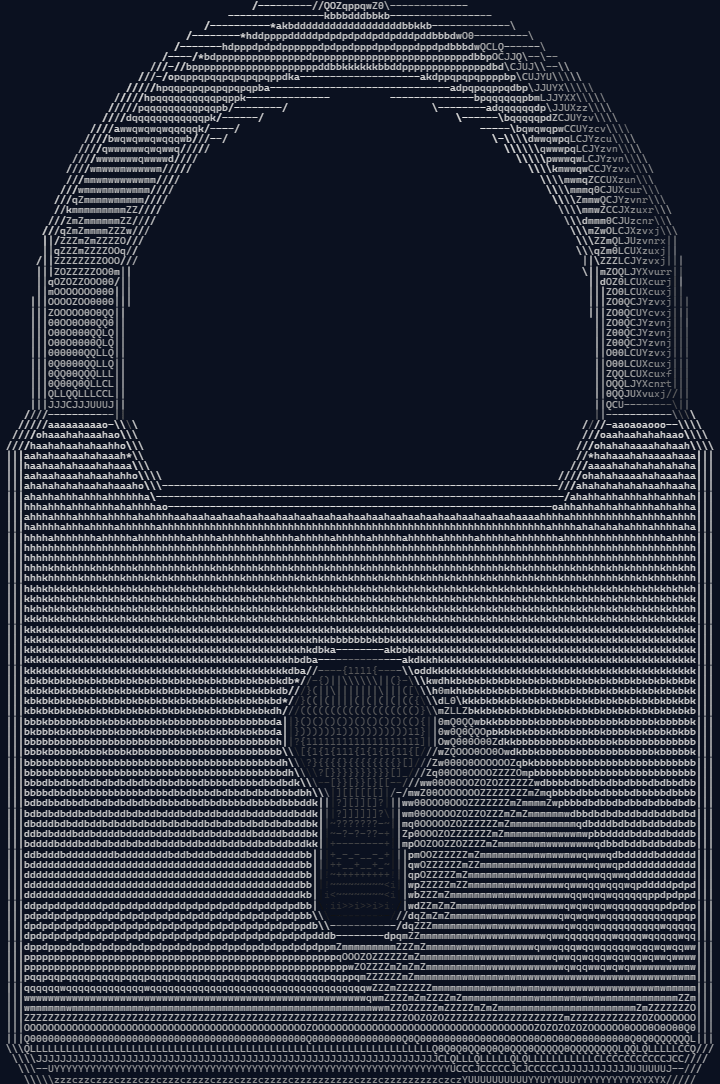
3D icons
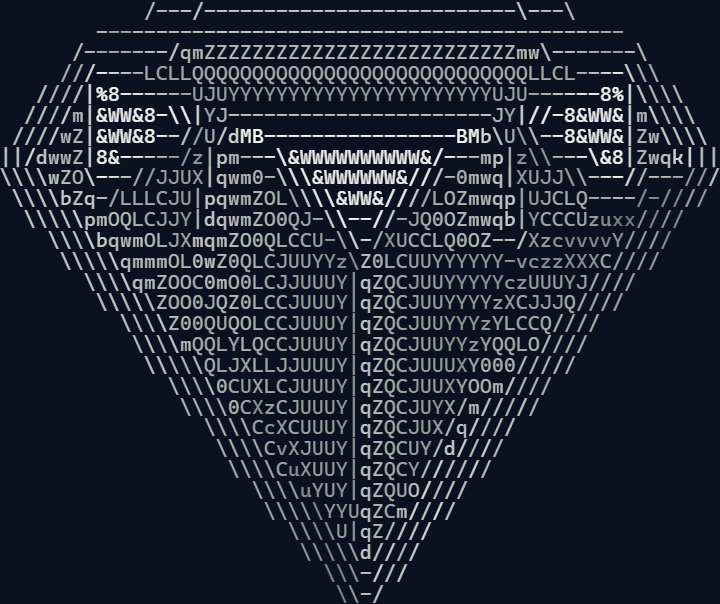
Soft shading on a transparent background: the transparency stays transparent, and the shading becomes the character ramp.





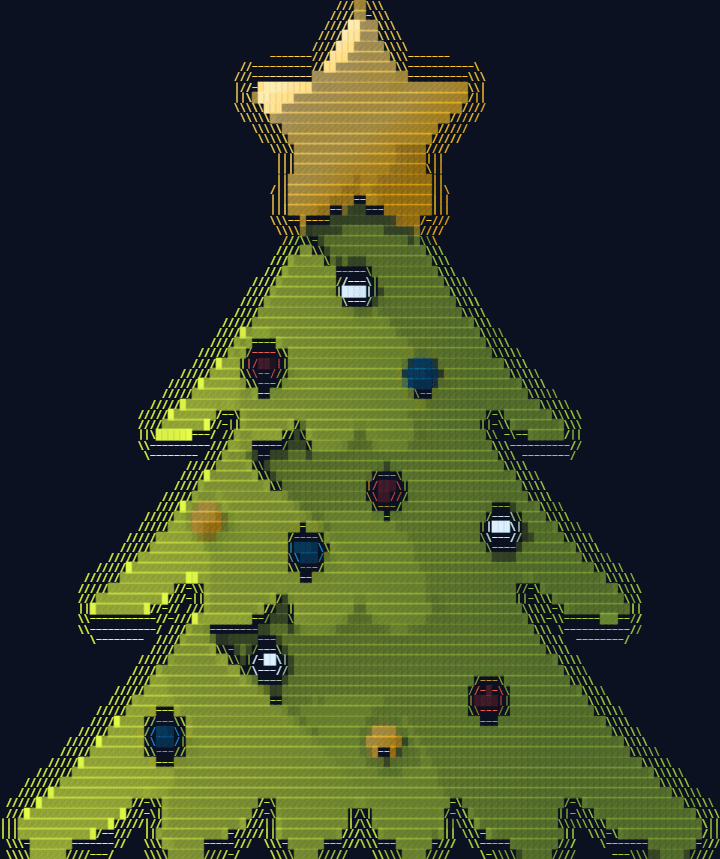
Emoji
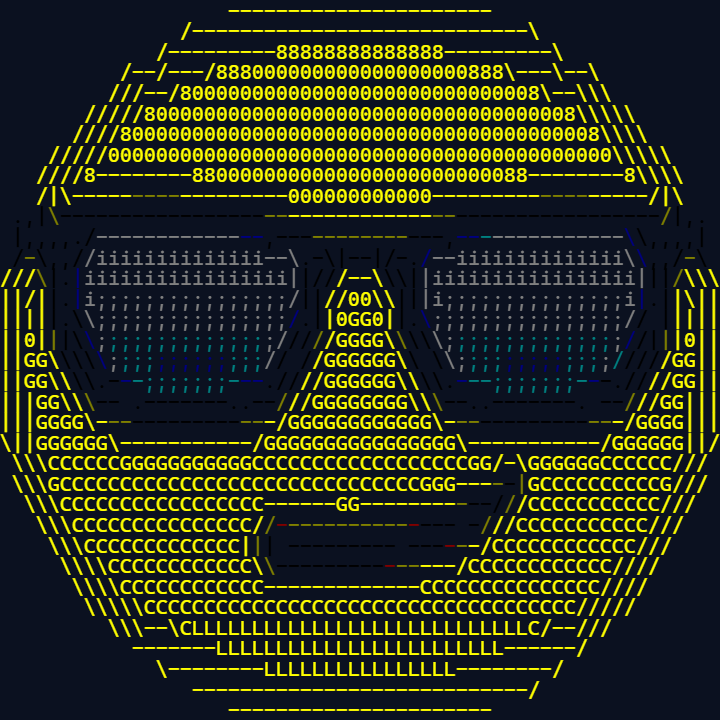
Small sources make small art - 48 to 80 characters across, sized for a chat message or a terminal.

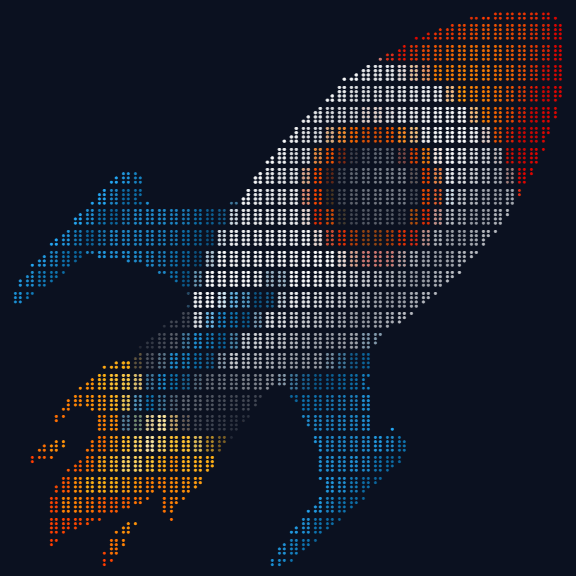

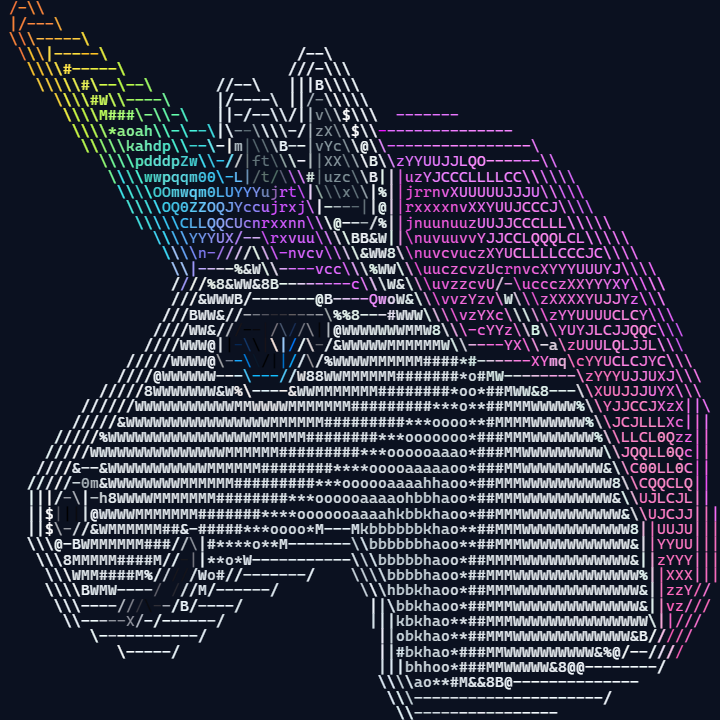

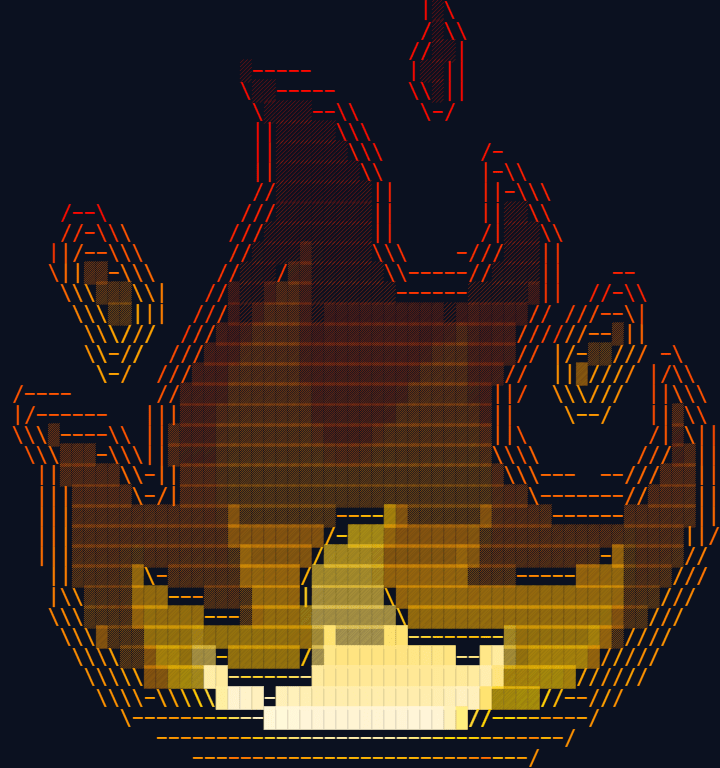






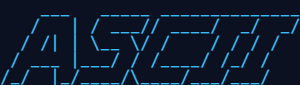
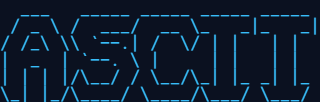
Text banners
No image needed: type a word and pick a FIGlet font. All twelve fonts are on the text to ASCII art page.



More guides
- Image to ASCII - photos, logos and illustrations, and the settings for each
- Text to ASCII art - FIGlet banners in 12 fonts
- ASCII art for a GitHub README - your logo as text in a README
- Terminal and SSH login banners - ANSI color banners for MOTD and your shell
- ASCII art for Discord - art that fits a message and a phone screen
- FAQ - privacy, formats, licensing and troubleshooting