
Turn your logo into a terminal login banner
Greet everyone who logs into a server with its logo - in color, drawn with real ANSI escape codes, so it appears instantly in any modern terminal. Convert your logo, download it as an .ansi file or a ready-to-run .sh script, and install it.
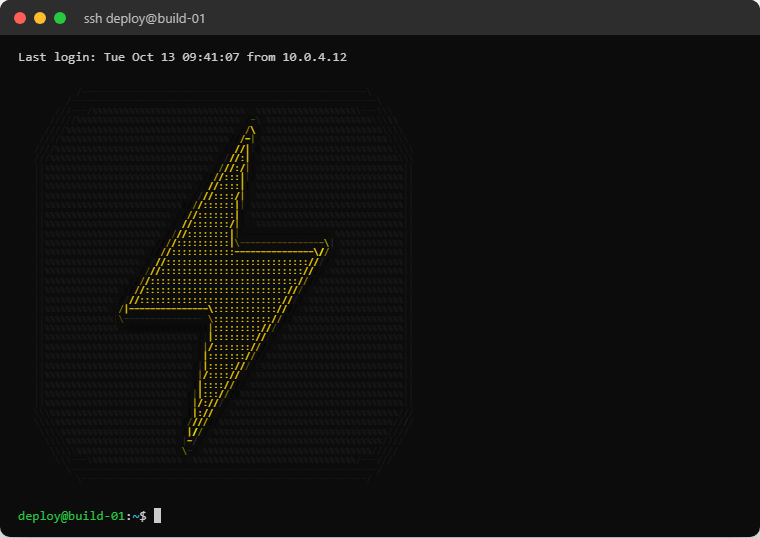
Pick the color depth
| Color mode | Escape codes | Use when |
|---|---|---|
| 16 colors (ANSI) | The basic 30-37 and 90-97 codes | It must work everywhere, including old consoles and serial lines |
| 256 colors (xterm) | 38;5;N | The safe default for any modern terminal |
| Full color | 38;2;R;G;B (24-bit) | The terminal sets COLORTERM=truecolor, as most current ones do |
| One color, Black on white | A single ink and paper | A clean, readable mark |
Not sure what a terminal supports? Run echo $COLORTERM: truecolor or
24bit means full color is safe. Otherwise use 256 colors.
The .ansi and .sh files carry the background color too, so the banner looks the same on a light or a dark terminal theme. Turn on Transparent to let the terminal's own background show through instead.
Width: stay under 80 columns
A terminal wraps anything wider than the window, and a wrapped banner is noise. 80 columns is the classic width that every terminal can show; 60 to 72 leaves room for a narrow window. The terminal preset uses 80 characters across.
For a small banner that still looks sharp, try the Quadrant blocks or Braille character sets: they pack four or eight pixels into each character. Most modern terminal fonts include those glyphs; if you see boxes instead, use the Standard set.
Install it
Every login, for every user (Linux)
Scripts in /etc/profile.d/ run for every login shell. Save the .sh export there:
sudo cp banner.sh /etc/profile.d/banner.sh
sudo chmod 644 /etc/profile.d/banner.sh
The message of the day
On most Linux systems the contents of /etc/motd are printed after an SSH login, escape
codes included:
sudo cp banner.ans /etc/motd
Ubuntu and Debian also run the scripts in /etc/update-motd.d/; make the .sh export
one of them to keep it alongside the system news:
sudo cp banner.sh /etc/update-motd.d/05-banner
sudo chmod 755 /etc/update-motd.d/05-banner
Just your own shell
Add one line to ~/.bashrc or ~/.zshrc:
cat ~/banner.ans
Windows Terminal and PowerShell
Windows Terminal understands the same escape codes. Add this to your PowerShell profile
(notepad $PROFILE):
Get-Content -Raw "$HOME\banner.ans"
The pre-login SSH banner
The SSH server can also show a banner before the password prompt, from the
Banner line in /etc/ssh/sshd_config. That text goes through the SSH
client's own display, and many clients show escape codes literally there - so use the plain .txt
export for it, and keep the color for the MOTD.
Banner /etc/issue.net
Questions about terminal banners
- What is the difference between the .ansi and .sh exports?
- The .ansi file is the banner itself, escape codes and all - print it with cat. The .sh file is a small script that prints the same banner, ready to drop into /etc/profile.d/ or a shell profile.
- Why does my banner show strange codes instead of colors?
- The program printing it is not interpreting escape codes - often a pre-login SSH banner or an old console. Use the plain .txt export there, or print the .ansi file with cat in a terminal.
- Which color mode should I pick for a server?
- Use 256 colors: every terminal from the last decade supports it. Full color looks best where COLORTERM is truecolor; 16 colors is the fallback for very old or minimal consoles.
- How wide should a terminal banner be?
- At most 80 characters, so it never wraps in a standard terminal window. Narrower is better if people often log in from a phone or a split pane.
More guides
- Image to ASCII - photos, logos and illustrations, and the settings for each
- Text to ASCII art - FIGlet banners in 12 fonts
- ASCII art for a GitHub README - your logo as text in a README
- ASCII art for Discord - art that fits a message and a phone screen
- Examples - before and after, with the settings behind each
- FAQ - privacy, formats, licensing and troubleshooting